Cybersecurity is about protecting your family’s personal information, devices, and digital lives from online threats. It includes securing computers, home networks, and data from unauthorized access, theft, or damage. Cybersecurity relies on a mix of tools, technology, and smart habits to keep information safe, private, and available only to the right people. This section provides an overview of why cybersecurity matters and how parents can take simple steps to create a safer online environment for everyone at home.
Here are some commonly used cybersecurity terms you might encounter:
- Malware: Malicious software designed to harm, exploit, or otherwise compromise a computer system or network. Types include viruses, worms, trojan horses, and spyware.
- Ransomware: A type of malware that encrypts the victim’s files or locks them out of their system, demanding a ransom payment to restore access. Most types of ransomware arrive through infected downloads or email attachments.
- Phishing: A technique used to deceive individuals into providing sensitive information (like passwords or credit card numbers) by pretending to be a trustworthy entity, often through email or fake websites.
- Virus: A type of malware that attaches itself to legitimate software or files and replicates when the infected program is executed, potentially causing damage to the system.
- Worm: A standalone malware that replicates itself to spread to other computers, often exploiting network vulnerabilities.
- Trojan: A type of malware that disguises itself as legitimate software, tricking users into installing it, which then allows unauthorized access to the system.
- Spyware: Software that secretly monitors and collects user data, often without their knowledge, to send to a third party.
- Firewall: A security system that monitors and controls incoming and outgoing network traffic based on predetermined security rules.
- Encryption: The process of converting data into a coded format to prevent unauthorized access, ensuring confidentiality.
- Social Engineering: Psychological manipulation of people into performing actions or divulging confidential information, using tactics like fear, urgency, curiosity, or trust to manipulate victims into doing something they normally wouldn’t.
- Spoofing: Spoofing is when someone disguises an email address, sender name, phone number, or website URL—often just by changing one letter, symbol, or number—to convince you that you are interacting with a trusted source.
- Catfishing: Catfishing occurs when someone creates a fictitious online persona or fake identity on social media or an online game, in order to deceive someone, usually for personal, financial, or emotional gain.
- Sextortion: Sextortion involves blackmailing victims by threatening to share sexual images or videos of them unless they provide more explicit content or money.
Be sure to familiarize yourself with the various types of cyber security threats and review resources to help prevent you and your family from becoming victimized.
Cybercriminals have plenty of opportunities to target young people, who tend to spend much of their lives on their smartphones, laptops and other digital devices. These criminals have grown more aggressive and sophisticated through the years, using advancements in technology to their advantage. Online scams cover a wide range of areas, from medical and student loan schemes to shopping and scholarship fraud. Below we highlight some of the fastest-growing scams that specifically target children and adolescents.
Sextortion
Sextortion is one of the fastest growing scams affecting teenagers globally and has been linked to dozens of suicides in the US alone. In 2024, The National Center for Missing & Exploited Children (NCMEC) received nearly 100 reports of financial sextortion per day.
Sextortion is a form of child sexual exploitation where children are threatened or blackmailed, most often with the possibility of nude or sexual images or videos of the child being made public by a person who demands additional sexual content, sexual activity or money from the child. The crime may happen when a child has shared an image with someone they thought they knew or trusted. However, in many cases, they are targeted by an individual they met online, often through deception on social media, dating apps, or online gaming sites where predators gain the victim’s trust and convince them to share explicit content.
Sextortion is a form of sexual exploitation that causes significant emotional trauma to victims. This crime crosses multiple jurisdictions and state/national borders via the internet.
For more in-depth information on sextortion, click here.
Phishing Scams
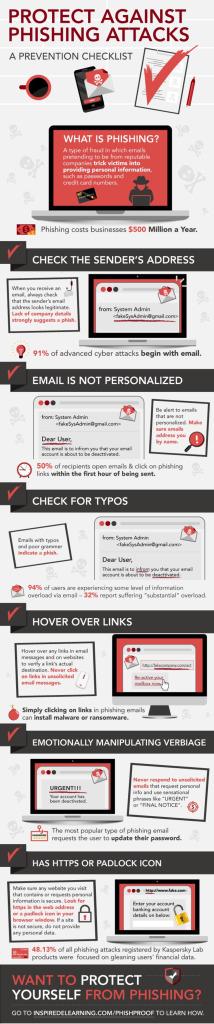
Phishing is a type of online fraud in which someone tries to trick the user into revealing valuable personal or sensitive information by pretending to be a trusted organization—like a bank, government agency, or company—using email, pop-ups, phone calls, or text messages. These scams are designed to steal information like passwords, credit card numbers, social security numbers, or other personal data. For example, a child might receive emails or texts from someone requesting login details to a site they access so they can “gift” the child with credit for the game.
Tips to guard against Phishing scams:
Secure yourself from fraud and phishing attacks by:
- Turning off the option to automatically download attachments.
- Saving and scanning with antivirus software any attachments before opening them.
- Before clicking on a web link in an email, carefully examine to make sure it is from who it claims to be. Hover over links (or press and hold on mobile) to preview the actual web address, and don’t click if it looks odd or doesn’t match the sender.
- Calling and verifying with the source that they are indeed the ones who sent the email before providing any kind of information.

Imposter Scams

Artificial Intelligence (or AI) is growing leaps and bounds….and so are the risks associated with it.
Imposter scams involve criminals using technology to mimic voices of family, friends, classmates or others, often tricking people into believing a loved one is in danger or distress, in order to persuade someone to send money.
The man calling Ruth Card sounded just like her grandson Brandon. So when he said he was in jail, with no wallet or cellphone, and needed cash for bail, Card scrambled to do whatever she could to help.
– Washington Post, 3/30/23: They thought loved ones were calling for help.
It was an AI scam.
In the story above reported by the Washington Post, Ruth rushed to the bank to withdraw thousands of dollars, only to later learn she was duped by someone cloning the voice of her grandson, Brandon. Ruth told the Washington Post, “We were convinced that we were talking to Brandon.”
Advances in technology allow voices to be replicated with an audio sample taken from anywhere, including Instagram, YouTube, Facebook, or TikTok. A few sentences are all that’s needed to translate an audio file to “speak” whatever the bad actor would like!
So how can you recognize imposter scams and protect yourself? The FTC shares the following tips:
Follow these tips to help protect your money and personal information:
- Be suspicious of any call from a government agency asking for money or information. Government agencies don’t use threats and they don’t call you with promises of or demands for money.
- Don’t trust caller ID – it can be faked.
- Never pay with a gift card, wire transfer, or cryptocurrency to anyone who requests it.
- Check with the real agency, person, or company. Don’t use the phone number they give you. Look it up yourself.
If you spot an imposter scam, report it to the FTC at ftc.gov/complaint. Your report can help the FTC’s investigators identify and stop imposters. To get notifications about new scams and tips to avoid them, sign up for our consumer alert.
If you have been scammed or think you may have been contacted by a scammer, report it to the FTC at ReportFraud.ftc.gov.

Catfishing (Fake Profiles)
Catfishing occurs when someone creates a fake identity on social media to impersonate another person. This can be done by using a profile with a fake name, age, appearance or gender, often using stolen photos, fabricated biographical details, and false information.
The goal of a catfisher is often to develop romantic or social relationships with others under false pretenses. They may do this for a variety of reasons, such as seeking attention, playing a prank, or even financial exploitation.
Catfishing can have significant emotional and psychological impacts on the victims, who may feel betrayed, embarrassed, or even unsafe after discovering the deception. It’s considered a form of online fraud and can in some cases be illegal, depending on the specific circumstances.
Cyberstalking is a form of online harassment in which someone uses digital means such as social media, email, messaging apps, or GPS tracking to monitor, intimidate, or threaten another person. Cyberstalking is different from online “trolling” or insults, as it involves persistent unwanted contact, spreading false information, identity theft, or attempts to track someone’s physical movements. Cyberstalking can cause significant emotional distress, disrupt daily life, and sometimes escalate into offline threats.
Examples of cyberstalking can include:
- Sending repeated threatening or harassing emails, text messages, or social media posts designed to create fear or distress.
- Obsessively tracking someone’s online presence by commenting on posts, monitoring “check-ins,” or watching who the victim interacts with.
- Using spyware or malicious software to gain access to a victim’s computer or phone, capturing passwords, browsing history, or even webcam feeds without consent.
- Impersonating someone by creating fake accounts, posting misleading or damaging content, or spreading false rumors intended to harm the victim’s reputation or relationships.
- Using GPS tracking or location services to follow someone’s physical movements in real time.
What to Do if You’re Being Cyberstalked:
- Document everything, including emails, texts, messages, and screenshots as evidence.
- Do not engage with the stalker, which can escalate the situation.
- Take steps to tighten your security, including changing passwords, enabling two-factor authentication, and updating privacy settings.
- If stalking occurs on social media, use platform tools to block the stalker and file reports on social media or messaging apps.
- Contact local law enforcement if you feel unsafe or receive threats.
- Reach out to victim support organizations, hotlines, or legal aid for guidance and protection.
Identity theft is a serious and growing problem, where criminals illegally access and use someone else’s personal information to open accounts, receive benefits, or commit crimes under a false identity. This type of fraud can have devastating consequences, especially when the victim is a child.
Children are vulnerable targets as they typically have no established credit history, making it easier for thieves to create new fraudulent accounts. It’s critical for parents and guardians to understand the various ways child identity theft can occur and take proactive steps to prevent and recover from this type of crime.
There are a few common ways child identity theft can happen:
- Physical Theft: Thieves may steal a child’s Social Security card from their home or intercept it in the mail after the child is born. This gives them access to the child’s identity information.
- Digital Theft: Data breaches, fake websites, email scams, and unsecured networks can expose a child’s personal data to criminals who can then use it for identity theft. Phishing scams, where scammers pretend to be from trustworthy organizations, can trick parents or children into revealing sensitive details.
- Parental Theft or Misuse: In some cases, a child’s own parents or guardians may misuse the child’s identity information, often to address their own financial problems. A disproportionate number of child identity theft cases are perpetrated by a relative with close access to the victim’s sensitive information.
- Oversharing Information: Sharing too much personal information about a child online, including on social media without privacy settings, can make it easier for scammers to steal their identity.
- Sharing Passwords: Poor password security, such as sharing passwords with friends or using the same passwords across multiple accounts, increases the risk of hackers gaining access to a child’s sensitive information.
- Stolen or Lost Personal Data: Documents like birth certificates, medical records, or Social Security cards can be misused by opportunistic identity thieves if they’re lost or stolen.
Signs of child identity theft include receiving pre-approval letters for credit, being denied government benefits, receiving IRS notifications, or getting contacted by debt collectors.
To prevent child identity theft, parents should:
- Monitor for the above warning signs.
- Ask credit bureaus if a credit report exists for your child.
- Lock and password protect your computer and cell phone.
- Avoid sharing specific personal information about your child online, such as full name or birthday. Limit sharing of your child’s personal information online and offline.
- Teach your children about online safety, privacy, and password security.
- Set privacy settings on websites and social media apps (see Rules ‘N Tools).
- Safely store important personal documents to prevent physical theft.
- Taking proactive steps and remaining vigilant are key to protecting children from this growing crime.
Help Protect Your Family’s Identity
The more time that your children spend online, the more opportunities they will have to share information about themselves. Talk to your children about the information that they should never share without your permission, including Social Security numbers and credit or debit card numbers.
- Avoid sharing your passwords or account details via email or instant messaging.
- Instead of clicking on links in emails for financial transactions, type the website address directly into your browser.
- Be cautious of calls, pop-up messages, websites, or emails requesting your personal information.
- Before making any purchases or providing information, check for “https” or a padlock symbol in your browser’s address bar.
- Use strong passwords and change them regularly.
- Only download software from trusted sources and refrain from opening emails or attachments from unknown senders.
- Keep your firewall, anti-spyware, and antivirus software installed and regularly updated.
- If you suspect identity theft or experience an incident, file a report with local authorities and inform your creditors.

Securing your home network and computers helps protect your personal information and reduces the risk of malware, identity theft, and unauthorized access that could disrupt your daily life or cause costly damage. Some important steps you can take include installing reputable antivirus and anti-malware software, enabling a firewall to block unauthorized access, keeping your operating systems and applications current, and securing your Wi-Fi network.
Malicious software, sometimes abbreviated malware, refers to harmful programs designed to damage, disrupt, or gain unauthorized access to computers, smartphones, and other digital devices. Common types include viruses that attach to files, worms that spread across networks, Trojans that disguise themselves as legitimate software, and ransomware that locks files until a payment is made. Once malware infects a device, it can steal data, delete files, slow down performance, or even allow remote control by cybercriminals. Protecting against malware through antivirus software, system updates, and safe browsing practices is crucial to preventing the harmful effects of these digital infections.
A good rule of thumb is to never download programs, apps, or attachments that you are not familiar with, are not expecting or don’t come from a trusted source, and never click on links you don’t recognize.
It’s essential to have virus/malware protection software to defend your computer or device from incoming threats, which will also in turn provide a warning when a potential threat is detected. Below is a partial list of security vendors that offer antivirus and security software to help keep computers and mobile devices secure. These security vendors offer a range of products and services to protect computers, laptops, smartphones, and tablets from viruses, malware, and other cyber threats. It’s recommended you research and compare the features, pricing, and user reviews of these solutions to find the one that best fits your needs.
Keeping your digital device software up to date is crucial for maintaining optimal security and performance. Software updates often include patches to address newly discovered vulnerabilities, which can be exploited by malicious actors to gain unauthorized access, steal sensitive data, or disrupt your device’s functionality.
By regularly updating your operating system, applications, and devices linked to the internet, you ensure that your devices are protected against the latest threats. Additionally, software updates can improve stability, fix bugs, and introduce new features that enhance your overall experience. To keep your devices updated (including smartphones, laptops, tablets and gaming devices), enable automatic updates whenever possible, and manually check for and install updates in a timely manner. This proactive approach to software maintenance helps safeguard your digital assets and helps your devices continue to operate securely and efficiently. The Windows, Android, and Apple iOS and MacOS operating systems all have settings to enable automatic updates:
Your home Wi-Fi network is the gateway that connects all your devices including computers, phones, smart TVs, and even appliances to the internet, which makes it a target for cybercriminals. If your Wi-Fi is left unsecured, attackers could intercept your personal information, access sensitive accounts, or even hijack your bandwidth for malicious activity. Strong home Wi-Fi security helps protect your privacy and keeps your devices safe from intrusions.
There are several steps you can take to keep your home Wi-Fi network secure. In order to implement them, you will need to log in to your Wi-Fi router, and probably review the manual or online help to change settings. These steps include:
- After logging in to the router, change the default administrator username, and set a strong, unique password.
- Enable the latest encryption protocol (WPA3, or WPA2 if WPA3 isn’t available) to protect your network traffic.
- Keep your router’s firmware up to date, as these updates often include security patches to address vulnerabilities. If your router offers automatic updates, make sure this is enabled.
- Be cautious about allowing guest access to your network, and limit the number of devices connected to your home Wi-Fi.
- Turn off the ability to manage your router remotely, unless you absolutely need it.
- Consider enabling the router’s built-in firewall and disabling any unnecessary features or services.
By implementing these best practices, you can significantly enhance the security of your home wireless network and protect your connected devices from unauthorized access or malicious activities.
A firewall is a crucial security device in a residential home network. It acts as a gatekeeper, monitoring and controlling the flow of incoming and outgoing internet traffic. By establishing a barrier between the home network and the outside world, a firewall helps protect against unauthorized access, malicious attacks, and the spread of computer viruses or malware. This safeguards personal data, devices, and the overall integrity of the home network, ensuring a secure and reliable internet experience for the household.
Most modern Wi-Fi routers have a built-in firewall, usually enabled by default. This hardware firewall protects every device on the network by monitoring incoming traffic and blocking suspicious connections to the devices on your network.
In addition to the protection offered by the Wi-Fi router, software firewalls provide another valuable layer of defense on individual devices. For example, Windows and Mac computers both include their own firewalls that monitor both incoming and outgoing traffic, alerting you if an unfamiliar program tries to access the internet without permission. By combining the network-wide protection of a router firewall with the device-level security of software firewalls, home users create a stronger shield against cyber threats and reduce the chances of hackers or malicious programs gaining control.
Plan:
Families should take a proactive approach to cybersecurity that begins with educating all household members, including children, on basic security practices, such as using strong and unique passwords, identifying phishing attempts, being careful about downloading and installing new software, and being cautious when sharing personal information online. Have discussions with your children routinely and consistently remind them to keep their personal information (and yours!) private.
Install reputable antivirus and anti-malware software on all devices, and enable automatic updates to ensure the latest security patches are applied. Establishing clear guidelines and rules for internet usage, social media, and online activities can help monitor and limit children’s exposure to potential online threats.
Using parental control features and content filters can help to better ensure your child’s online safety and protect them from exposure to harmful online content. By adopting a comprehensive, family-centered approach to cybersecurity, households can significantly reduce the risk of falling victim to cyber threats and safeguard their digital well-being.

The more we do online, the more opportunities there are for cybercrimes to grow not only in scale but in frequency. Cybercrime includes online fraud, identity theft, cyber stalking, cyberbullying, email scams, phishing & more. Here are a few helpful tips to help combat cybercrime:
- Phishing emails are often the way thieves access your online accounts. If an email looks suspicious, it’s best to delete it.
- Avoid free Wi-Fi networks. Sensitive info can be compromised on public Wi-Fi.
- Always keep your mobile devices & apps updated to protect yourself.
- Unencrypted Wi-Fi networks are open to anyone—including cyber criminals—so keep sensitive data safe by never transmitting credit card numbers or other personal information on an unencrypted network.
- Keep in mind that any devices connected to the Internet – like smart thermostats, coffee pots, health trackers, and refrigerators can be compromised and need to be updated to protect the network to which they are connected.
- Your home’s wireless router is the primary entrance for cybercriminals to access all of your connected devices. Secure your Wi-Fi network, and your digital devices, by changing the factory set default password.
- Keep your operating system, browser, and other critical software optimized by installing updates.
- Cybercriminals look for weak passwords, weak privacy settings, and outdated security software. Protect yourself from cybercrime by using strong passwords and enabling multi-factor authentication. It requires an additional step after passwords, often a PIN texted to your cell.
If you or your business become a victim of cybercrime, be sure to file a report. (Tips adapted from the Department of Homeland Security (DHS)
Prevent: Rules ‘N Tools:
- Be Aware of the Risks
- Understand that your child’s data can be collected, tracked, and used for advertising, profiling, or worse. Kids are especially vulnerable because they may not recognize privacy threats or scams.
- Use Strong Passwords and a Password Manager
- Teach your child to use long, unique passwords for each account. Use a combination of:
- Uppercase and lowercase letters
- Numbers
- Symbols (!, %, $, #, &, etc.)
- Avoid using the same password across sites, as well as: predictable patterns, common words (e.g., “password,” “welcome123”); personal info (like your name or birthdate); keyboard patterns (e.g., “123456” or “qwerty”)
- A password manager (used with parental oversight) helps store and autofill passwords safely.
- Teach your child to use long, unique passwords for each account. Use a combination of:
- Set Up Two-Factor Authentication (2FA)
- Enable 2FA on your child’s accounts wherever possible. This adds a second step (often a code sent to your phone) to keep accounts secure, even if a password is stolen.
- Use Secure Connections
- Ensure your child only connects to trusted, password-protected Wi-Fi networks. Avoid public Wi-Fi, or use a Virtual Private Network (VPN) to encrypt their internet traffic and hide their location. (TIP: Avoid using free VPNs which often collect and sell information based on browsing habits. Visit here For a review of reputable VPN providers.)
- Use a Private Search Engine
- Consider a kid-safe and private search engine which does not track searches or build a user profile:
- Brave Search — Strong privacy with no tracking, offers safe search settings to filter adult content.
- DuckDuckGo — Doesn’t track searches, has an optional safe search filter for adult content.
- Mojeek — No tracking of users, has an optional safe search filter for adult content.
- Qwant — Doesn’t track users or personalize results. Offers Qwant Junior, a child-friendly version.
- Startpage — Acts as a privacy shield for Google results, stripping out tracking and personal identifiers. Uses Google SafeSearch, which can be turned on for filtering explicit results.
- Swisscows — Does not collect or track personal data. Always blocks pornography and violent content.
- Consider a kid-safe and private search engine which does not track searches or build a user profile:
- Use an Ad Blocker
- Online ads can be annoying, and can also be a danger to your child’s privacy. They track your child across the internet based on their search history and interests. Malicious ads can also be used to infect your computer with malware. Install an ad blocker on your child’s browser to reduce tracking and prevent malicious ads from appearing. Some options for consideration can be found here.
- Limit Use of Voice Assistants
- Voice assistants (like Alexa, Google Assistant or Siri) constantly listen. They are used to respond to your voice commands (e.g.. “Alexa, turn off my lights”) but they might mishear you, causing them to start recording when you didn’t intend to. Limit or disable them to prevent unintended recording and data sharing. This can be done through taking steps such as:
- Check for a physical setting (like a button or a switch) that stops the device from listening. You might also be able to activate light or sound alerts that tell you when your voice assistant is actively listening.
- Check the privacy policy for your voice assistant to understand how your audio recordings are handled and who can listen to them. Settings may be available that allow opting out of human review of recordings.
- Review your default settings to check whether your voice recordings are automatically stored permanently; implement any auto delete setting.
- Add a PIN or turn off voice ordering to control the use of voice commands to purchase items.
- Voice assistants (like Alexa, Google Assistant or Siri) constantly listen. They are used to respond to your voice commands (e.g.. “Alexa, turn off my lights”) but they might mishear you, causing them to start recording when you didn’t intend to. Limit or disable them to prevent unintended recording and data sharing. This can be done through taking steps such as:
- Update Software Regularly
- Keep all devices, including computers, mobile devices, tablets, browsers, and apps up to date. Software updates are necessary to keep these running smoothly as they often patch security vulnerabilities that could otherwise be exploited. Enable auto-updating whenever available.
- Use Antivirus/Antimalware Protection
- Antivirus software is designed to detect, protect against, and remove malware on a computer or mobile device. It uses a combination of advanced technologies to protect against a variety of threats, including ransomware and spyware. Install antivirus or anti-malware tools to help detect and block threats—especially useful if your child is downloading files or clicking unknown links.
- Use a VPN
- A VPN hides your child’s IP address and encrypts their internet activity, making it difficult for hackers, websites, or even internet providers to track their activity or location. It also hides their IP address, reducing targeted ads and data collection. Visit here For a review of reputable VPN providers.
- Use a Firewall
- Enable built-in firewalls on your child’s device or router to block unauthorized access to their internet connection. A firewall acts as a security barrier between your devices and the internet, filtering traffic to block unwanted access while allowing safe connections. A firewall protects a child’s online privacy by blocking unauthorized access, malicious websites, and hidden data-sharing from apps or services. It also helps parents monitor and control internet traffic, reducing the risk of personal information being exposed or stolen.
- Check App Permissions
- Every app on your phone has certain permissions. A camera app has permission to access the camera, for example. Google Maps has access to your location so it can tell you where you are and give you directions. However, many apps ask for permissions that they don’t need. Some might access your microphone, photos, contact lists or your text messages. You can revoke these permissions and should do so regularly. On iOS, go to Settings and scroll down until you start seeing app names. Tap an app to see its permissions and revoke any it doesn’t need. On Android, go to Settings > Apps (or Application Manager), and select an app. Tap Permissions to see its permissions and revoke any it doesn’t need.
- Clear your Cache and Cookies, and Browsing History
- Browsing history, cookies and cache all leave a trail of your online activity that snoopers could potentially follow. Cache is used to store web page resources to decrease loading time. Cookies are used to store user preferences and maintain browsing sessions (while convenient, cookies can compromise your privacy, especially on shared devices.) The browsing history includes a list of web pages a user has visited, as well as associated metadata such as page title and time of visit. Clearing these items on a regular basis helps not only clear up valuable space, but it also improves browser performance and protects privacy:
- Apple Safari – how to clear your cache and cookies.
- Google Chrome – how to clear your cache and cookies.
- Microsoft Edge – how to clear your cache and cookies.
- Browsing history, cookies and cache all leave a trail of your online activity that snoopers could potentially follow. Cache is used to store web page resources to decrease loading time. Cookies are used to store user preferences and maintain browsing sessions (while convenient, cookies can compromise your privacy, especially on shared devices.) The browsing history includes a list of web pages a user has visited, as well as associated metadata such as page title and time of visit. Clearing these items on a regular basis helps not only clear up valuable space, but it also improves browser performance and protects privacy:
THE TEN "Rules ‘N Tools®" FOR CHILD ONLINE SAFETY
Offensive and defensive strategies designed to protect the innocence and safety of children in the digital world.
Implementing both Safety "Rules" and Software "Tools" on all digital devices, online platforms and services used by your child will help to ensure a safer online experience for them, and peace of mind for you. One without the other is ineffective.
"Rules" A Parent’s Offensive Strategy (Non-technical measures)
- Communicate often about online privacy and safety with your child:
- Talk regularly about online activities and stay engaged and involved; build an atmosphere of trust early on.
- Encourage them to think before they post and avoid sharing personally identifiable information (PII) including date of birth, address, full name, school, or other information that can be used to identify and track down a child.
- Instruct them to never send or share explicit images or messages.
- Teach them to avoid meeting in person with someone they only met online because they cannot recognize a disguised predator.
- Direct them to use safe search engines and cybersecurity protections.
- Require parental permission before using third-party apps as many access private information and profiles.
- Warn then about the very real dangers about online predators, traffickers and grooming tactics. Recognize red flags and avoid anyone who attempts to move conversations to unmonitored platforms, private spaces, text and email.
- Use privacy settings on all social media and gaming platforms and block strangers.
- Instruct them to report any inappropriate or threatening messages or requests to social media or gaming platforms, or to authorities if necessary. Tell a parent immediately.
- Supervise your child’s online activities:
- Ensure your child feels safe discussing anything they encounter without fear of parent overreaction. Be a trusted adult. Remind them that no conversation is off limits.
- Consider delaying access to internet-enabled devices until you are certain your child can demonstrate responsible digital habits and the maturity to use and manage technology appropriately.
- Approve all apps, games and platforms your child uses.
- Friend/follow your child’s accounts and know their usernames, passwords and login details on all devices.
- Monitor posts, photos/videos, browser history, messaging and location sharing settings.
- Teach your child digital etiquette:
- Practice the Golden Rule: “Do unto others as you would have them do unto you.”
- Avoid harmful bullying, gossip or hurtful posts; there are no “take backs”.
- Respect others’ privacy and avoid sharing embarrassing content.
- If you see something, say something. If you believe someone you know is in harm's way, tell a trusted adult.
- Teach your child responsible device and technology use:
- Follow family technology rules at home and away. Maintain full transparency about texts, messages and apps, avoid “hiding” online activities.
- Create online accounts and adjust privacy settings/parental controls only with parent/guardian permission.
- Share physical location with parent/guardian permission, and keep location services active only for direct family.
- Care for and maintain phones and devices, keeping them charged.
- School, homework, extracurricular activities and family relationships come before device use.
- Implement family agreements:
- Review our “Family Contract for Smartphones & Digital Devices” and share it with your child’s grandparents and relatives.
- Teach your child from an early age that technology is a tool, not a toy, and is a privilege, not a right.
- Demonstrate responsible technology use through a collaborative effort - both the child and the parent must demonstrate self-discipline and lead by example.
- Establish the consequences in advance for failure to abide by the family agreement.
"Tools" A Parent’s Defensive Strategy ("Technical Measures")
Parental controls should be utilized on all internet-enabled devices and platforms including desktops, laptops, gaming consoles, mobile phones, music devices and related apps. Most operating systems - such as Windows (Microsoft accounts), macOS (Apple ID), Chrome OS (Chromebook accounts), and Android (Google accounts) - offer built-in parental controls, as do app stores and some routers.
Remember, technology tools are not a substitute for parental supervision as determined kids can usually find a work-around.
- Set age-appropriate filters, time limits and utilize monitoring software by using a password only known by the parent.
- Ensure privacy settings are enabled on social media, gaming, and mobile devices. Limit online communications to parent-approved friends and platforms, especially for kids K-8.
- Regularly check browser history.
- Restrict chat room access; limit live audio and video chat for younger children. Only allow live audio chat features with extreme caution and only with approved contacts
- Keep cybersecurity software up to date on all devices.
Respond:
If you are a victim of a cyber scam or identity theft, it’s important to report the incident quickly and to the right authorities. Here’s a guide based on the type of crime and where to report it:
GENERAL CYBERSCAM OR ONLINE FRAUD
Report to the Federal Trade Commission (FTC)
- When to use: If you were scammed online (e.g., fake websites, phony tech support, imposter scams).
- What it does: The FTC collects data and helps connect you with recovery resources.
IDENTITY THEFT
Report to IdentityTheft.gov (FTC)
- When to use: If someone used your personal information to open accounts, file taxes, or make purchases.
- What it does: Creates a personalized recovery plan and pre-filled letters to send to credit agencies and businesses.
INTERNET CRIME (e.g., hacking, phishing, extortion)
Report to the FBI’s Internet Crime Complaint Center (IC3)
- When to use: If the scam involved online fraud, hacking, malware, or extortion.
- What it does: Sends complaints to federal, state, or local law enforcement.
STOLEN MONEY OR BANK FRAUD
Contact your bank or credit card company immediately – ask for your bank’s fraud department directly.
- When to use: If you gave your account number or were tricked into sending money.
- What it does: Helps stop unauthorized transactions and recover lost funds.
SOCIAL MEDIA OR APP-BASED SCAMS
Report to the platform
- Where: Use the app’s or site’s built-in reporting tool (e.g., Facebook, Instagram, TikTok, WhatsApp).
- When to use: If the scam took place via a social media post, message, or fake profile.
- What it does: Can remove fake accounts or scam content and limit future harm.
ONLINE SHOPPING SCAMS
Report to the Better Business Bureau (BBB)
- When to use: If you paid for something that never arrived or was misrepresented.
- What it does: Tracks scam companies and helps warn others.
CREDIT FRAUD OR UNAUTHORIZED ACCOUNTS
Contact the Credit Bureaus:
- Equifax
- Experian
- TransUnion
- Place a fraud alert or credit freeze on your credit file.
- Request a free credit report to look for suspicious activity
LOCAL LAW ENFORCEMENT
File a Police Report
- Where: Your local police department.
- When to use: Especially helpful if a creditor or financial institution requires proof of identity theft.